¶ Getting Started
Welcome to HymnRO: Requiem of Dreams! This page will walk you through creating your account, installing the client, and logging in for the first time.
¶ How It Works
- Create a Master Account - Register with your email and password. This is your main account.
- Game Accounts - Your first game account is automatically created. You can create additional game accounts from your account panel.
- Download - Download the game and extract the folder.
- Ready to Play - Run the patcher and log in with your Master Account details, then select the game account you want to play.
¶ Master Accounts and Game Accounts
¶ Master Account
- Your main account, created on the website. Used to log in to the patcher.
- You may only have one Master Account.
- You'll need to verify your email address before you can log in.
Password requirements:
- 8 to 31 characters
- At least 1 uppercase letter
- At least 1 lowercase letter
- At least 1 number
¶ Game Account
- Character accounts linked to your Master Account.
- A game account is automatically generated when you register your Master Account.
- You can create multiple game accounts under one Master Account.
- Game usernames must be 4 to 23 characters, letters and numbers only.
- Select which game account to play from the Launcher.
- Multi-clienting is allowed.
- You can rename your Game Accounts (except while logged in-game on that account).
¶ Installing the Game Client
The complete HymnRO client is available on the download page. Extract the zip file and run the patcher to begin your adventure.
The client folder contains three applications:
- HymnRO Patcher - checks for and applies game updates. This is the only app you should run to start playing.
- HymnRO - the game client itself.
- Launcher - where you log in and pick your game account. This launches automatically from the Patcher and should not be run directly.
¶ Steps
- Download the zip file from the download page.
- Extract the contents to your desired location.
- Run HymnRO Patcher. This will check for and apply any game updates. You'll be asked to install .NET 8 Desktop Runtime if you don't already have it.
- Once patching finishes, the HymnRO Launcher will open automatically.
- Click SETUP to configure your resolution settings.
- Log in to the Launcher with your Master Account details (email and password).
- Select your desired Game Account. The Start Game button stays greyed out and unclickable until a game account is selected.
- Click Start Game.
- Select your character and begin playing!
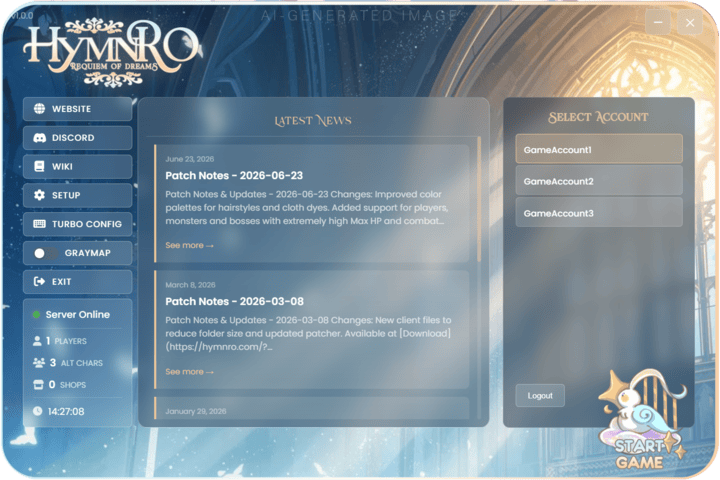
Always start the game through HymnRO Patcher. If you try to run Launcher.exe directly, you'll get the error: "Please launch the game using HymnRO Patcher."
If you try to open the Launcher while one is already running, you'll see: "The HymnRO Launcher is already running." Just switch to the existing window instead of opening a new one.
¶ Technical FAQs
Try right clicking and selecting "Run as administrator," restart your PC, redownload client.
¶ Why am I asked to install .NET 8 Desktop Runtime?
- .NET 8 Runtime is required to run the patcher - think of it like installing DirectX for games.
- It's a safe, official Microsoft download.
- You only need to install it once. If you already have it installed, you won't be prompted again.
¶ "Windows protected your PC" pop-up appears when I launch HymnRO Patcher
Click "More info", then "Run anyway". This appears because our patcher is new and not yet widely distributed by Microsoft - it's safe to run.
¶ I just downloaded the game folder and tried to launch HymnRO for the first time. Why won't my game open?
- Run HymnRO Patcher first - it must complete a patch check before the Launcher will open.
- The Launcher will open automatically once patching is complete.
- Click SETUP and choose a resolution.
- Log in to the Launcher using your Master Account details.
- Select your desired Game Account, then press Start Game.
¶ Why can't I launch the game by double-clicking Launcher.exe or HymnRO.exe directly?
- The Launcher and game client are only meant to be started through HymnRO Patcher, which handles patching first.
- If you run the Launcher directly, you'll see: "Please launch the game using HymnRO Patcher."
- Just run HymnRO Patcher instead - it will launch the Launcher for you automatically.
¶ I got "The HymnRO Launcher is already running" - what does this mean?
- This means a Launcher window is already open, usually minimized or behind another window.
- Check your taskbar for the existing Launcher window.
- Always start the game by running HymnRO Patcher instead of Launcher directly.
¶ I got a "Bad Image" popup issue with cps.dll - Error status 0xc0e90002
- Verify your HymnRO.exe and cps.dll are in the folder
- Make sure launcher is closed, patch again and restart your PC